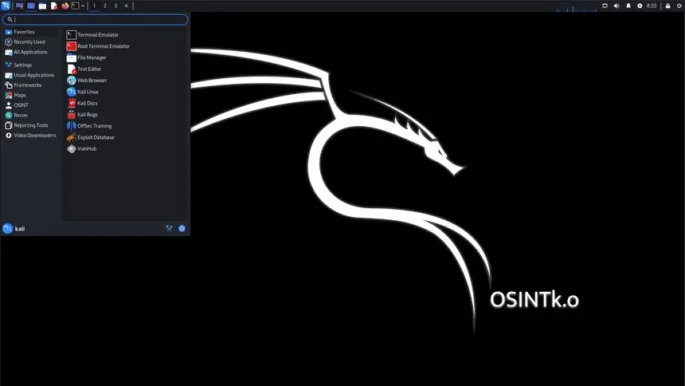
How to Use Kali Linux for OSINT Investigations

Let’s Get Started!
1. Setting Up VirtualBox
- Download VirtualBox by clicking here, or follow the steps outlined below.
- Run the installer and follow the on-screen instructions.

- During installation, you may encounter an error stating: “Microsoft Visual C++ 2019 package missing.”

- To resolve this error, click here to download and install the Microsoft Visual C++ 2019 package or follow the following steps.

- Once the package is installed, resume the installation of VirtualBox.

Upon successful installation, your VirtualBox interface should resemble the following:

Next, install the VirtualBox Extension Pack by following the instructions or click here for a direct download.

Your VirtualBox setup is complete, and you’re ready to move on to Kali Linux!
2. Setting Up Kali Linux
- Download the pre-built Kali Linux virtual machine for VirtualBox by using the following steps, or click here for a direct download.

- Extract the files from the Kali Linux folder, open it, and double-click on the .vbox file, as shown below.

After double-clicking the .vbox file, the pre-built Kali Linux virtual machine will be automatically added to VirtualBox, as shown below.

Configuring Memory Allocation
The default memory allocation for Kali Linux is set to 2 GB, which is suitable, but you can increase this up to your system’s capability if desired.

Starting Kali Linux
To launch Kali Linux, click the Start button and use the following credentials to log in:
- Username: kali
- Password: kali

Once logged in, open the terminal and update your system with the following commands:
- sudo apt update
- sudo apt upgrade

Your Kali Linux system is ready for OSINT investigations!
Let’s move on to the next section, where we’ll learn how to find, install, and integrate OSINT tools in Kali Linux.
3. Integrating OSINT Tools into Kali Linux
a. GitHub OSINT Research
Now, let’s look for OSINT tools on GitHub.
To find OSINT tools, utilize Google Dorks in your searches. Here are some examples you can use:
- site:github.com “OSINT Tool”
- site:github.com “OSINT” AND “Email”
- site:github.com “OSINT” AND “Phone Number”
This will help you discover various tools specifically tailored for OSINT investigations.
You can also search directly on GitHub using terms like “Email tool” to find relevant results.
b. Installing an OSINT Tool
Let’s choose the “Email OSINT tool” for this demonstration.

- Open the chosen GitHub link and scroll down to the “Requirements” and “Usage” sections.
- Copy each command and paste them into the Kali Linux terminal:

c. Troubleshooting Common Issues
Sometimes you may face errors during installation, such as:

Don’t worry! Here are some troubleshooting steps:
- Restart your Kali Linux and re-run the command.
- Ensure your system is updated with
sudo apt updateandsudo apt upgrade. - Search the first line of the error message online for potential solutions.
- Remember, the more you troubleshoot, the better you’ll get at navigating Kali Linux!
For me, restarting Kali Linux and rerunning the last command $ pip3 install -r requirements.txthelped solve installation issues.
d. Using the Email OSINT Tool
Copy the command, paste it into the Kali Linux terminal, and press Enter, as demonstrated below.

Now, analyze the target email to assess the tool’s effectiveness. This tool reveals the profile picture and the names of social media platforms associated with the email, as shown below.

Wrapping Up
Congratulations! You are now equipped to explore various OSINT tools within Kali Linux.













 HACK RF RADIO AND NET HUNTER PHONE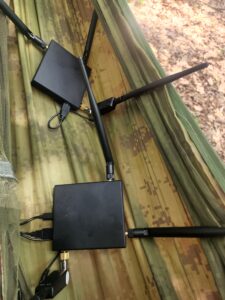



 USING WIGLE + WIFITE + ALFA ADAPTER
 Daily practice and real-time application is key to perfection